The setup assistant guides you through configuring the core features of flow.
Step 1: Activate Your flow License in Salesforce
A valid license is required for the flow connector package to operate. The license was provided via email.
1. Paste the License Key into the License Activation field.
2. Click Activate.
Verification: Once the license is successfully activated, a green confirmation message will appear indicating that your license is verified and active.
Step 2: AWS Integration
To enable syncing between Salesforce and AWS Partner Central, configure Named Credentials in Salesforce.
1. Go to Setup → Named Credentials.
2. Find AWS Partner Central API and click Edit
If the AWS Partner Central API named credential does not already exist, you can create it by following these steps:

I. Click New and select Create Legacy.

II. Enter your AWS Access Key ID and Secret Access Key, and complete the following fields:

a. Label: AWS Partner Central API

b. Name: AWS Partner Central API

c. URL: https://partnercentral-selling.us-east-1.api.aws

d. Identity Type: Named Principal

e. Authentication Protocol: AWS Signature Version 4

III. Click Save to complete the setup.
3. Enter your AWS Access Key ID and Secret Access Key & click Save
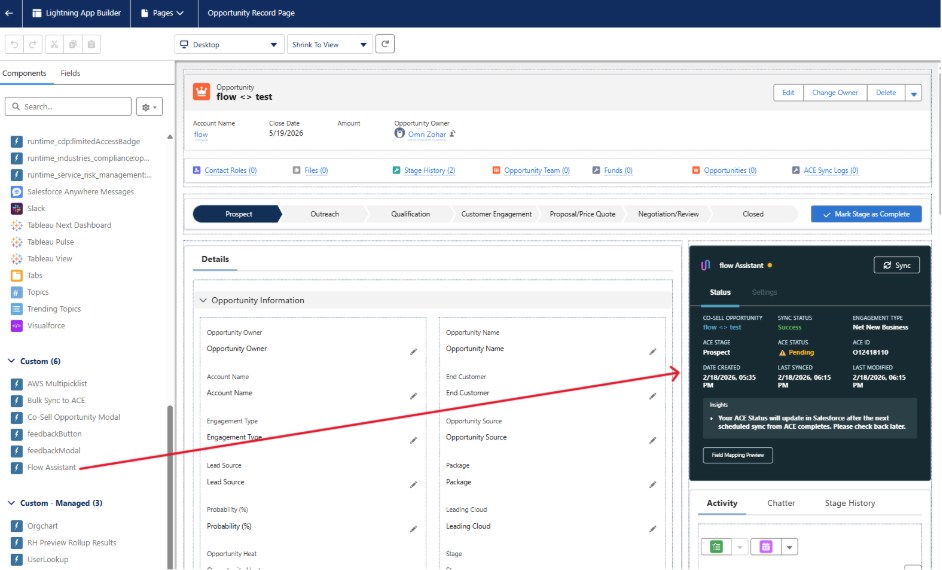
Step 3: Add flow Assistant
This button allows Salesforce users to sync individual Opportunities directly to AWS Partner Central.
1. In Salesforce, go to Setup and open Object Manager.
2. Under the Object Manager, locate and click the Opportunity option
3. Select Lightning Record Pages, then open Opportunity Record Page.
4. Click Edit to modify the record page.
5. In the Components panel, search for flow assistant
6. Drag the component onto your Opportunity layout.
7. Click Save → Activate on the top right screen
Step 4: Add the “Bulk Sync” Button to the Opportunity List View
This button lets you sync multiple opportunities at once.
1. In Object Manager → Opportunity, open List View Button Layouts.
Click Edit.
Move the Bulk Sync button into the “Selected” column.
4. Scroll down and click Save. The Bulk Sync button will now appear in your Opportunity list view.
Step 5: ACE Automation Sync
This step ensures Salesforce automatically checks for updates from AWS Partner Central.
Schedule the ACE Sync job
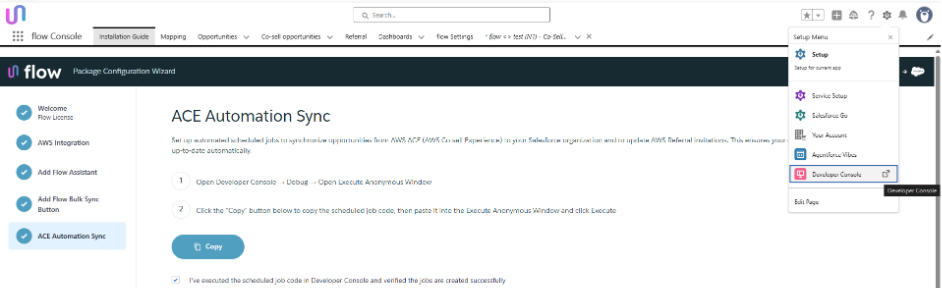
Go to Settings → Developer Console.
2. In the Developer Console, open Debug → Open Execute Anonymous Window.
3. Click the "Copy" button below to copy the scheduled job code, then paste it into the Execute Anonymous Window and click Execute
Was this article helpful?
That’s Great!
Thank you for your feedback
Sorry! We couldn't be helpful
Thank you for your feedback
Feedback sent
We appreciate your effort and will try to fix the article